

Wireless surveillance systems are becoming more common in homes and small businesses. The market is full of affordable, easy to use, IP-based cameras that consumers can use to monitor the inside or outside of their house. Of course, as the number of cameras increases, managing it all becomes a lot more complicated.
This is where Synology's Surveillance Station comes in. This professional Network Video Recording (NVR) package comes bundled with DiskStation Manager (DSM) and can be used together with your existing surveillance equipment to efficiently safeguard your home or office environment. Surveillance Station offers many powerful surveillance features including the ability to remotely record and monitor live video footage, watch recorded video footage via your web browser or mobile device, and send alert notifications when it detects suspicious behavior.
Installing Surveillance Station is pretty straightforward. From within the Package Center, the app can be downloaded and installed with just a few clicks.

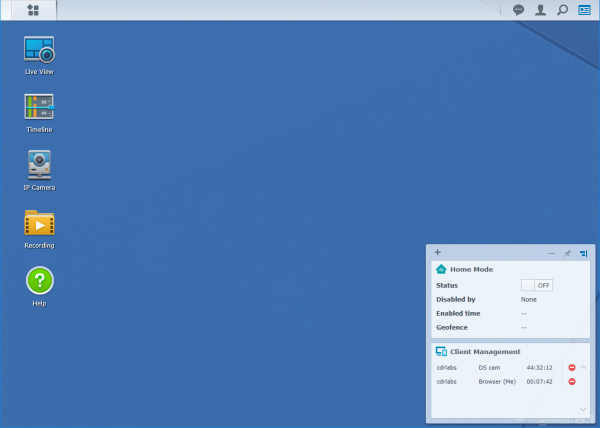
Once the install is done, you can launch Surveillance Station from the Main Menu. As you can see, the app's web-based interface is very similar to DSM. In addition to the desktop, you get a main menu, task bar and handful of shortcuts for Surveillance Station's core features.
The next step is to add some cameras. The Camera Setup Wizard gives you two setup modes: Quick Setup and Complete Setup. In both cases, you will need to enter a name for the camera as well as it's IP address or host name and then select the brand and model. You will also need to enter the username and password of the camera's administrator account.
 |
 |
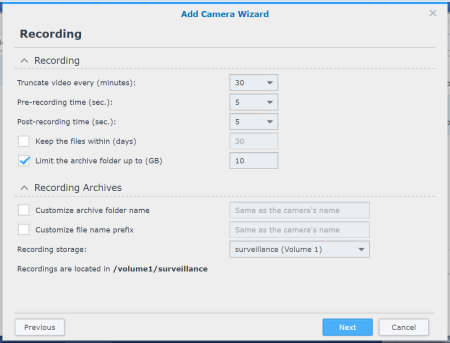
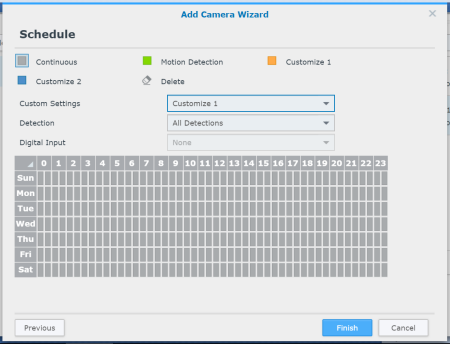
If you selected Quick Setup, you're done at this point. The Complete Setup gives you additional options to tweak things like the video resolution, frame rate, bitrate and image quality. You can also set the time length of each saved video file, specify how many days to keep recordings and select a folder where they are stored. Lastly, you can edit the schedule and choose whether to record continuously or when motion or a custom event is detected.

 |
 |
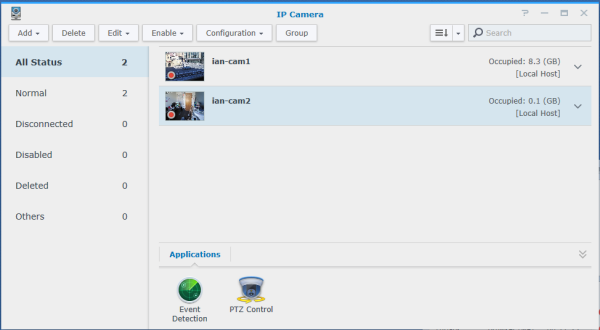
If all goes as planned, your camera will show up in the IP Camera app. From here you can check the status of your cameras and change their settings.
Another useful app within Surveillance Station is Live View. Like the name suggests, the app is a centralized interface for viewing live video from different cameras. Live View lets you watch up to 100 channels of live video, take snapshots and adjust the camera angle. You can also create camera groups to easily manage large numbers of cameras, customize channel layouts and switch live view stream profiles according to your needs

In addition to letting you view live video, Surveillance Station gives users the ability to locate and playback recorded footage via the Timeline app. With its built in calendar, Timeline makes it very easy to go back and find the specific day and time you're looking for. It will even mark events in different colors so that you can find them easier.
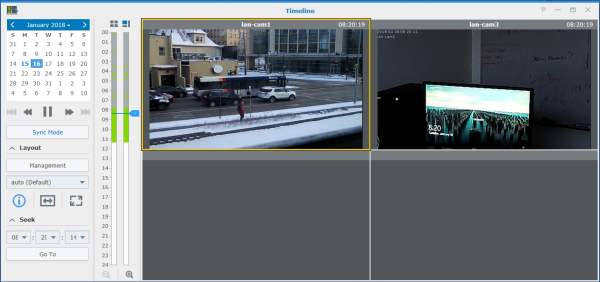
While most people will probably access Surveillance Station via its web interface, Synology does offer a client for Windows as well as the DS cam app for both the iOS and Android platforms. The Windows client's interface looks nearly identical to the web-based one. However, it does offer some advantages. In addition to it using your system's GPU to decode videos it avoids many of the compatibility issues with browsers like Internet Explorer and Safari.


The DS cam app doesn't offer nearly as many features as the Windows client. What it does let you do, though, is monitor your live feeds, watch recorded videos, receive alerts and control the cameras' pan/tilt/zoom (PTZ) functionality.
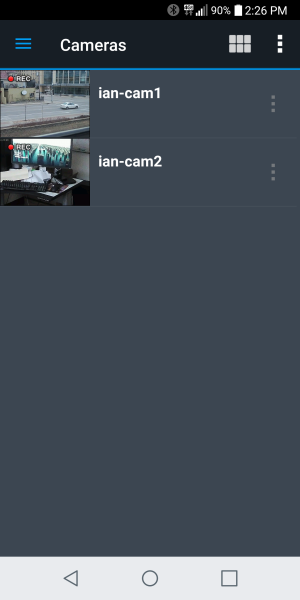 |
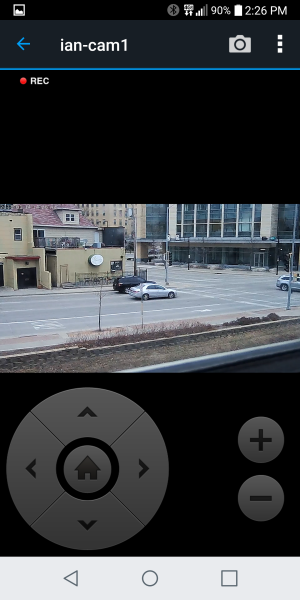 |
Synology recommends that you enable port forwarding on your router instead of using Quickconnect with DS cam, and, after spending some time with the app, it's easy to see why. Even over a relatively fast Wi-Fi connection, the videos were quite choppy. Lowering the bandwidth for mobile clients helped a bit but the PTZ functionality was still very hard to use. There was a good 5 to 10 second lag from when you clicked the button and you saw the camera move.


